Player Panel
Description
The Player panel is used to load and execute saved macro sets. Macro sets are JSON files stored in a configurable presets folder, organised into categories and subcategories. The panel lets you run an entire set, step through entries one by one, edit sets (which opens them in the Recorder), duplicate or delete sets, and view requirements.
The Player panel is used for:
Selecting a macro set by category, subcategory, and file name.
Running the entire set with the chosen recall type (Default, Min, Max, Random).
Stepping through entries one at a time (useful for debugging or partial execution).
Opening a set in the Recorder for editing.
Duplicating or deleting a set.
Viewing a set’s description and its runtime requirements.
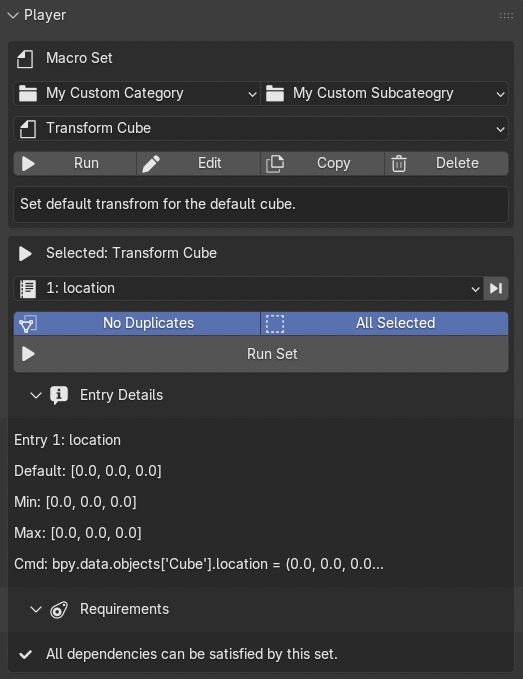
The Player panel with a macro set selected.
Panel Components
Category & Subcategory
Category – top‑level folder inside the presets directory.
Subcategory – optional second‑level folder.
When you change the category, the subcategory and macro set dropdowns update automatically.
Macro Set Selection
Macro Set – dropdown showing all JSON files in the selected category/subcategory. The description is shown as a tooltip.
Run – executes the entire set according to the current recall type and options.
Edit – loads the set into the Recorder panel for modification.
Copy – creates a duplicate of the set (and its companion .blend, if any).
Delete – permanently removes the set (and its companion .blend).
Set Description
If the macro set contains a description, it is displayed in a label.
Playback Controls
No Duplicates – when enabled, operators that create new datablocks (modifiers, constraints, materials, etc.) are skipped if the target already has one of that type. Prevents cluttering the scene when replaying the same set multiple times.
All Selected – when enabled, the set runs on every selected object instead of only the active object. This is useful for applying the same transformation or modifier stack to multiple objects.
Recall Type – for property entries, chooses which value to apply. This row is only shown when the loaded macro set contains at least one property entry whose min, max, and default values differ (i.e.
"has_random": truein the set header):Default – use the stored default value.
Min – use the stored minimum value.
Max – use the stored maximum value.
Random – pick a random value between min and max.
Run Set – executes the entire set.
Step – executes only the currently highlighted entry and moves to the next one. Use this to run a macro set one step at a time.
Entry Details
When you select an entry in the Entries dropdown, a collapsible section shows the entry’s name, default/min/max values (for properties), and the first 50 characters of its Python command.
Requirements
The Requirements panel scans the macro set and lists any external dependencies that are not satisfied by the current scene or by entries inside the set itself (e.g., an object named “Cube” that is not present and is not appended by the set). This helps you understand what must exist before running the set.