Recorder Panel
Description
The Recorder panel is where you create new macro sets. You can add entries by right‑clicking any button or property in Blender’s interface, by using the Last Touched list, or by using the dedicated Append Asset, Set Material, and Set Geonode buttons. Once you have a collection of entries, you can edit their names, Python commands, and value ranges, then save the set as a JSON preset file.
The Recorder panel is used for:
Adding macro entries (right‑click, Last Touched, or asset buttons)
Editing the list of recorded entries (reorder, delete, modify)
Setting default, min, and max values for property entries
Toggling between absolute (bpy.data) and relative (bpy.context) paths
Saving the current cache as a macro set (with optional category / subcategory)

The Recorder panel with recording turned off.

The Recorder panel in recording mode with no recorded macros added.

The Recorder panel in recording mode with recorded macro entries in the cache.

The Right click recording method.
Recording Mode
Start recording by toggling the Record Macro button. While recording, you can:
Right‑click any button, property, or operator and choose Add Macro Entry from the context menu.
Use the Last Touched Actions section to scrape recent commands from the Info area and add them individually or as a sequence.
Use the Object Data section to record Append Asset, Set Material, or Set Geonode entries.
Note
The Record Full Array toggle (array icon) determines whether indexed assignments (e.g. location[0] = 1) are stored as full‑array assignments (location = (1, 0, 0)).
Last Touched Actions

The Last Touched Header.
Get Last Touched – scrapes the Blender Info area and displays the most recent valid commands.
Add Selected – adds the currently highlighted Last Touched command as a new macro entry.
Add Sequence – adds every command in the Last Touched list as separate entries, preserving order.
Object Data Shortcuts
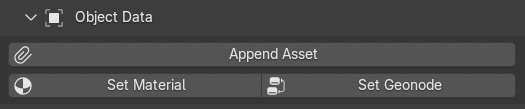
The Object Data Header.
Append Asset – Opens a file browser. After selecting a .blend file, you can pick one or more datablocks (materials, objects, node groups, etc.) to append. Each selected datablock becomes a macro entry that will be appended when the set is played.
Set Material – Records an entry that assigns the most recently appended material (or the active object’s active material) to the active material slot.
Set Geonode – Records an entry that assigns the most recently appended node group (or the active Geometry Nodes modifier’s group) to the object’s Geometry Nodes modifier.
Recorded Macros List
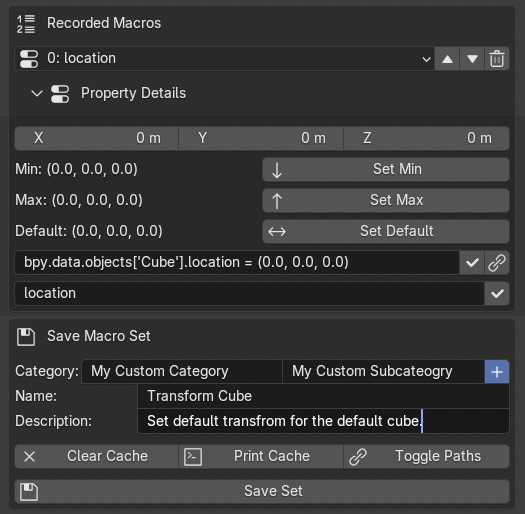
The Recorded Macros Cache.
All recorded entries appear in the Recorded Macros list. Each entry shows its index and name.
Up / Down arrows – reorder entries.
Trash icon – delete the selected entry.
When you select an entry, its details appear below:
For property entries you can edit the live value, set Default, Min, and Max using the current value.
For operator entries you can edit the Python command directly.
For append entries you can edit the display name.
For set_material entries the panel shows the material name and slot index (read-only).
For set_geonode entries the panel shows the node group name and modifier name (read-only).
The Command field shows the Python command; edit it and press the checkmark to update.
The Name field lets you change the display name.
The Toggle Path Type button (LINKED icon) converts property entries between absolute (bpy.data.objects[“Cube”].location) and relative (bpy.context.object.location) paths.
Saving a Macro Set
Category / Subcategory – choose an existing category/subcategory or create a new one by ticking New Category and entering names.
Macro Set Name – the name of the preset (used as the JSON file name).
Description – a short description that will be shown in the Player panel.
Clear Cache – discards all current entries without saving.
Print Cache – prints the raw cache to the system console (for debugging).
Toggle Paths – converts all property entries in the cache between absolute and relative paths.
Save Set – writes the cache to a JSON file in the chosen category/subcategory.
Note
If your macro set references explicit datablocks (e.g. bpy.data.materials[“MyMat”]), the extension will offer to create a companion .blend that bundles those datablocks. This ensures the set works on any machine, even when the original .blend file is not present.

The save companion blend dialogue.